 Screen Online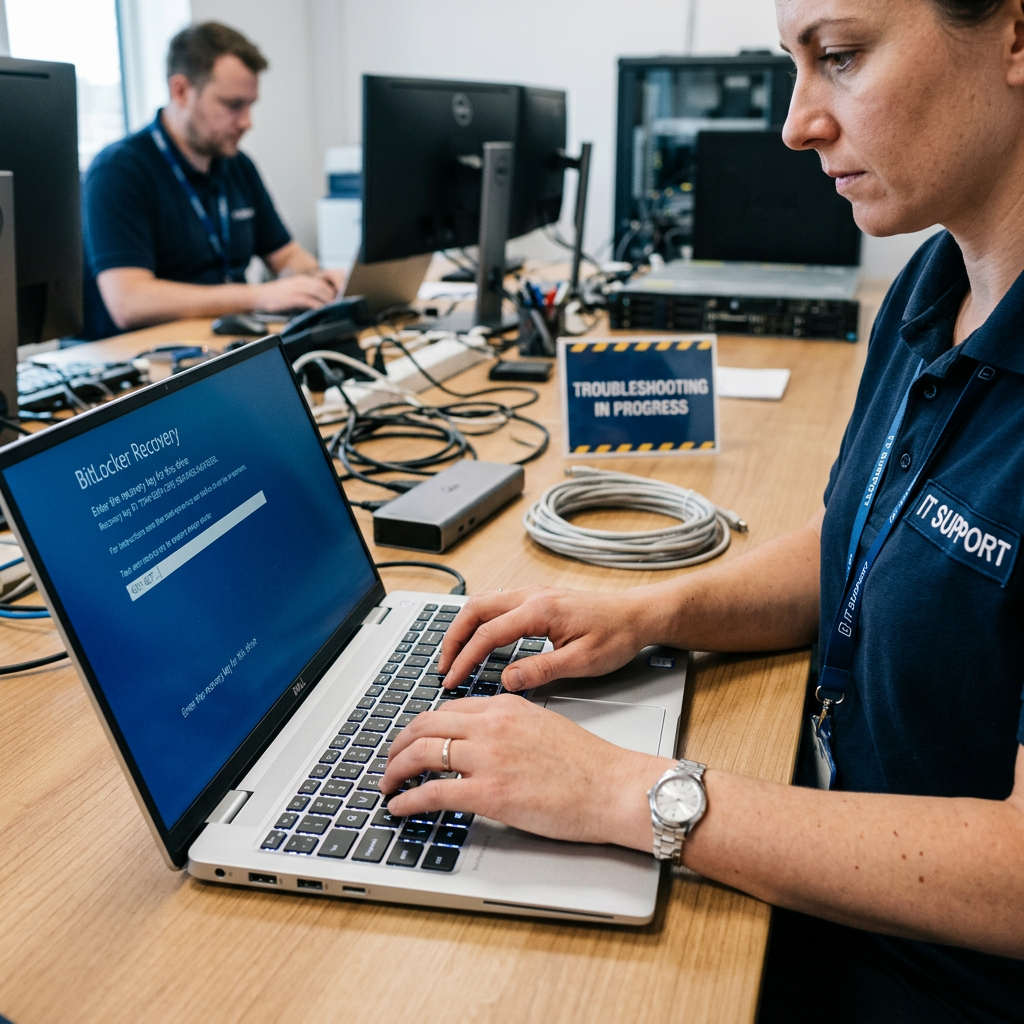
There are few things more stressful than turning on your computer and being greeted by a cyan-blue screen asking for a 48-digit BitLocker Recovery Key.
For many users, this happens suddenly, even if they never manually turned on BitLocker. If you're stuck on this screen and searching for answers like "How to get past BitLocker recovery screen" or "Why am I getting a BitLocker recovery screen," this guide is for you.
Why Is This Happening?
BitLocker is a built-in Windows encryption tool designed to protect your data if your laptop is stolen. Under normal circumstances, you never see the recovery screen. However, BitLocker will trigger a "locked" state if it detects a change in the system's hardware or software that might indicate a security threat.
Common triggers include:
- A Recent BIOS/UEFI Update: This is the most common cause. A firmware update can change the "identification" of the motherboard.
- Hardware Changes: Swapping out a hard drive, adding more RAM, or even plugging in a new docking station.
- TPM Failure: BitLocker relies on a chip called the Trusted Platform Module (TPM) to store keys. If the TPM is cleared or malfunctions, BitLocker will ask for the recovery key.
- Secure Boot Changes: Turning Secure Boot on or off in your BIOS settings.
How to Find Your Recovery Key
If you cannot bypass the screen, you must find your key. Here are the three most likely places it is stored:
- Your Microsoft Account: This is the most common for modern Windows 10 and 11 users. Go to account.microsoft.com/devices/recoverykey from another device and sign in.
- OneDrive / Printout: Check your personal files or look for a physical printout you might have made when setting up the PC.
- Active Directory (Work/School): If your laptop is managed by a company or school, the IT department likely has the key stored in their internal database.
How to Fix the "BitLocker Loop"
If your computer asks for the key every single time you boot, you are in a "BitLocker loop." Even after entering the key, the system doesn't "remember" it. Here is how to fix it:
- Enter the key and boot into Windows.
- Open the Start Menu, type
Control Panel, and go to System and Security > BitLocker Drive Encryption. - Click "Suspend Protection" (don't worry, this doesn't decrypt your files, it just pauses the check).
- Restart your computer.
- Go back to the same setting and click "Resume Protection."
This simple "reboot" of the BitLocker check often updates the system's hardware signature and stops the recovery screen from appearing again.
Using BitLocker Simulation for Training
If you are a student, an IT professional, or someone who wants to understand what this screen looks like without actually locking your PC, you can use our BitLocker Recovery Screen Simulator. This tool is often used by instructors to teach students about Windows security environments in a safe, risk-free setting.
Final Thoughts
The BitLocker recovery screen is an important security feature, but it can be a nightmare if triggered accidentally. By suspending and resuming protection after an update, you can keep your data safe without the headache of a blue recovery loop.