 Screen Online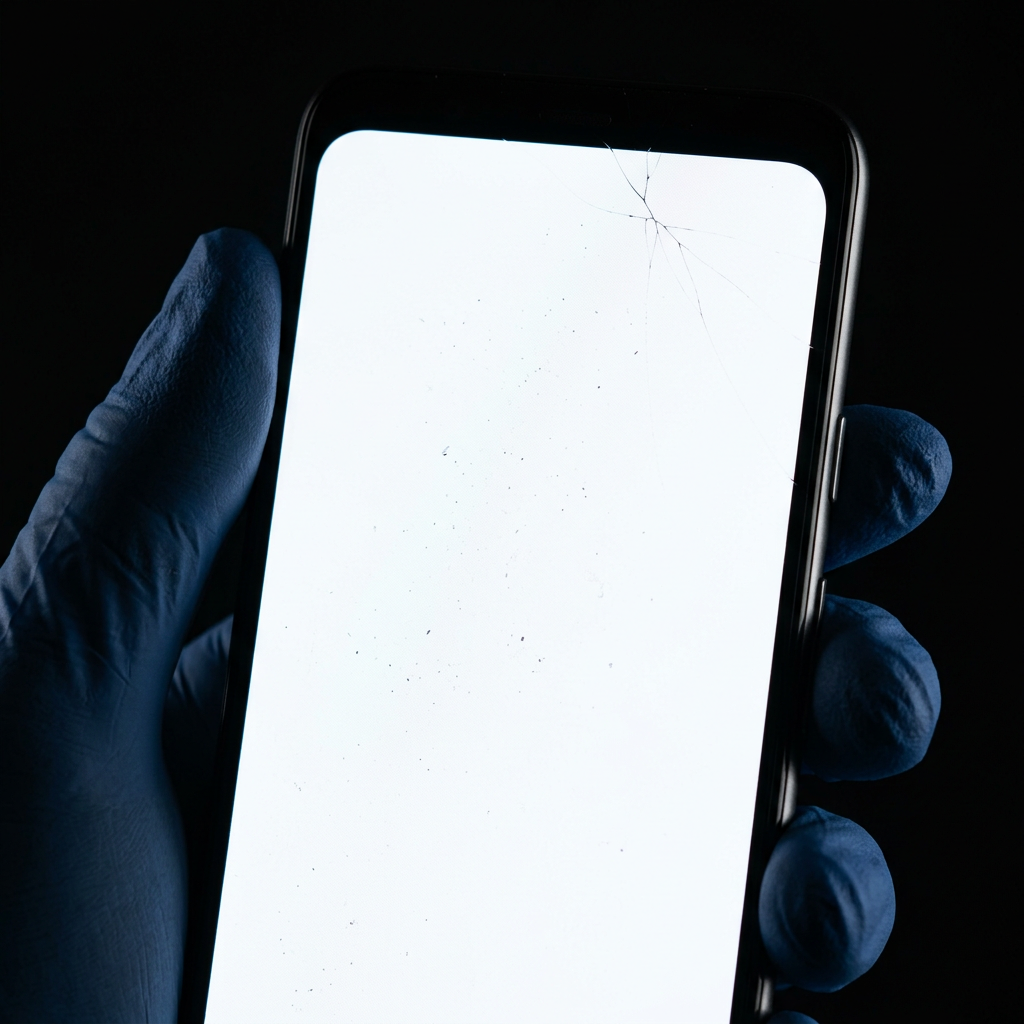
When is a white screen not just a blank background? When it’s one of the most effective tools for inspecting your digital devices. Whether buyin a used phone or checking your aging laptop for damage, a pure white screen is a simple, effective, and free diagnostic tool.
In this guide, we’ll show you exactly how to use a full-screen white image to catch issues that are invisible during normal use.
Why a White Screen?
Modern displays are made of multiple layers: the outer glass, the touch digitizer, and the internal liquid crystal panel. Under normal use—scrolling through dark apps or colorful photos—tiny imperfections are hidden. But with a pure, high-brightness white screen, common issues become impossible to hide.
1. Finding "Hidden" Cracks
Some cracks are so fine they only appear when light passes through them in a specific way. A bright white screen illuminates the fracture lines in the glass or within the LCD layer itself.
- External Cracks: These feel like sharp edges on the surface.
- Internal LCD Cracks: These often look like dark "spiderwebs" or lines that glow with a shifting rainbow tint when you press on them.
2. Detecting Dead and Stuck Pixels
Pixels are the millions of tiny dots that make up your screen. Sometimes they fail.
- Dead Pixels: These appear as permanent black dots on a white background. Because they are "off," they offer a stark contrast against the pure white screen.
- Stuck Pixels: These appear as bright red, green, or blue dots. While a white screen is great for finding dead pixels, a black screen is often better for finding stuck ones.
3. Spotting Internal Dust and Moisture
If your device has been repaired or has gaps in its frame, dust can get trapped between the layers. This looks like tiny "hairs" or gray specks that you can’t wipe off from the outside.
A white screen is also the best way to see the early signs of water damage—which often appear as cloudy "stains" or uneven brightness in the corners of the panel.
How to Perform the Test
- Clean Your Screen: Before testing, use a microfiber cloth to remove all fingerprints and external dust.
- Turn Off the Lights: For best results, go to a dark room to eliminate reflections from windows or lamps.
- Go Full Screen: Open our White Screen tool and click the "Open Fullscreen" button.
- Max Out Brightness: Set your device’s brightness as high as it will go.
- Scan the Corners: Most issues start at the edges. Pay close attention to the bottom corners of your laptop or phone.
Summary
Next time you're worried about your display's health, don't just guess. Use a pure white screen to verify the clarity and integrity of your display. It’s a 30-second check that could save you from an expensive future repair.